How Much Bandwidth Does Live Sports Streaming Need? (2026)
By Aly Butt · November 9, 2026 · 4 min read
It’s the fourth quarter, the game is tied, and your stream freezes. So how much bandwidth does live sports streaming need? For one 4K stream, about 25 Mbps is the usual benchmark, but your whole household shares that connection. Phones, a second TV, and a gaming console all compete for it during a big game.
This guide gives you per-stream numbers, a simple way to calculate your own total, and a look at why a fast plan can still buffer. Let’s start with the quick answer.
Table of Contents
The Quick Answer: Mbps Per Stream
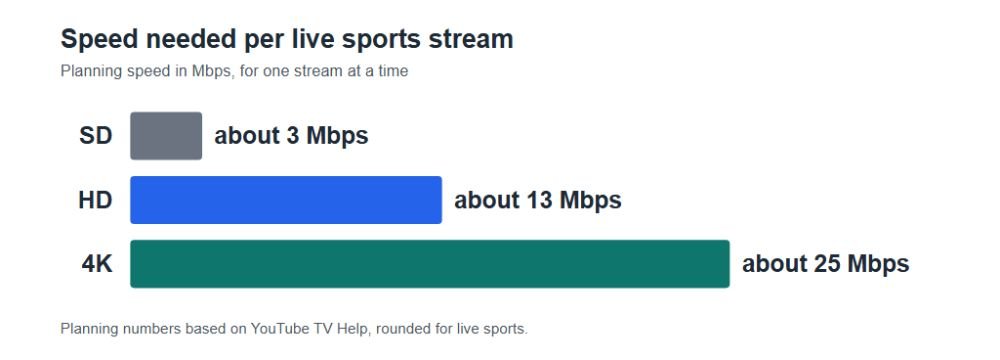
For live sports, plan on about 13 Mbps per HD stream and 25 Mbps per 4K stream. Those numbers come from what the big live TV services publish, rounded up so the stream stays smooth when other devices are online. Add up every screen watching at the same time, then leave some room on top. The sections below show you how.
SD, HD and 4K Requirements at a Glance
Here is what the services say. All figures are download speeds for one stream.
| Quality | What services recommend | Source |
|---|---|---|
| SD (480p) | About 3 Mbps | YouTube TV Help, Fubo Help |
| HD (720p–1080p) | 7 Mbps for one HD stream, 13 Mbps for reliable HD with other devices online (YouTube TV). 8 Mbps for live streams (Hulu + Live TV). About 7 Mbps per 720p stream (Fubo, worked out from its three-stream example). | YouTube TV Help, Clark.com, Fubo Help |
| 4K | 25 Mbps (YouTube TV). 20 Mbps for 4K on regular YouTube. | YouTube TV Help, YouTube Help |
YouTube’s own page also lists 5 Mbps for 1080p video on regular YouTube, which is useful for phones and tablets.
Minimum vs. Recommended Speeds
A minimum speed is the least a service needs to work. It is not the speed that keeps your game smooth. If your connection dips below the minimum, even for a few seconds, the picture gets blurry or the video stops.
That is why YouTube’s guidance talks about sustained speed. A plan that is fast at 2 p.m. but slow at 8 p.m. will not help you on game night. For live sports, aim for the recommended number, not the minimum. In this guide, I use 13 Mbps for HD and 25 Mbps for 4K as planning numbers.
Bandwidth vs. Internet Speed vs. Bitrate: What’s the Difference?
These words get mixed up all the time. Here is a simple way to think about them.
- Bandwidth is the maximum amount of data your connection can transfer at any given moment. A wider road fits more cars at once, and a higher bandwidth lets more data move through at the same time.
- Internet speed is how fast data moves. Most people use “speed” and “bandwidth” to mean the same thing, and for a home plan that is fine.
- Throughput is what you actually get at a given moment. You may end up paying less than the billed amount.
- Bitrate is how much data the video itself uses each second. Services lower or raise it automatically based on your connection. This is called adaptive bitrate streaming. To see how resolution, frame rate and codec change the numbers, try our bitrate calculator.
One more detail helps with data math later. Internet speeds use megabits per second (Mbps). File sizes use bytes. There are 8 bits in a byte, so a 25 Mbps stream moves about 3 megabytes each second.
What Makes Live Sports Harder to Stream Than a Movie
Movies and live games both play over the internet, but they behave differently. A live game has less room for error. or compare streaming services side by side.” This page has “Best for 4K” badges
Why Live Video Can’t Buffer Far Ahead
When you watch a movie on demand, your device can load several minutes ahead. A small slowdown goes unnoticed because the cushion absorbs it.
Live video is happening right now, so there is very little to load ahead. If your connection dips, the cushion runs out fast. You see it as a blurry picture or a freeze.
Fast action may also be harder for video to handle than a slow scene, because the picture changes so quickly. Services do not publish a separate “sports” speed, though, so I can’t give you an exact number for how much more it takes. The practical lesson is the same: a steady connection matters more than a peak number.
Why Not Every Game Streams in 4K
A 4K plan helps only if the game is actually in 4K. Fubo says it offers limited events in 4K. One TV Guide report says Hulu + Live TV channels are still limited to HD, even though Hulu offers 4K on demand.
You also need a compatible 4K TV or streaming device. YouTube TV, for example, plays video in HD or SD if your device or connection does not meet its 4K requirements.
So many of the games you watch will be HD streams. Check what your service offers before you plan around 4K.
Official Speed Requirements by Streaming Service
Here is what each service says. Requirements change, so check the service’s help page before you decide anything.
YouTube TV
YouTube TV’s help page says it needs at least 3 Mbps for standard definition, and speeds under that may load slowly or rebuffer. It lists higher tiers for HD and recommends 13 Mbps or more to stream HD reliably when other devices share the network. For 4K, YouTube TV says your download speed should be 25 Mbps or higher. You also need a compatible 4K device and TV.
Fubo
Fubo’s help page lists 3 Mb/s or more for 480p, and it gives a useful example: three 720p streams at once need about 21 Mb/s. That works out to about 7 Mb/s per stream. Fubo also points viewers to Fast.com to test their connection.
For 4K, TV Guide reports a 25 Mbps minimum. Remember that Fubo’s 4K is limited to certain events.
Other Live Sports Services
Hulu + Live TV recommends about 8 Mbps for live streams, according to Clark.com’s roundup. The same roundup lists 8 Mbps for live streams on Disney+. For Paramount+, a third-party table lists 25 Mbps for 4K.
These come from third-party sources. Open your service’s own help page to confirm the current number.
How to Calculate Your Household’s Bandwidth Needs
A single stream is easy. The hard part is everything else on your network at the same time. A short formula makes it simple.
A Simple Formula
- List every screen that might stream during the game. Count TVs, tablets, and phones.
- Give each stream a number. Use 13 Mbps for HD on a TV, 25 Mbps for 4K, and about 5 Mbps for a phone or tablet.
- Add other activity. Video calls, online gaming, security cameras, and smart devices all use bandwidth. In the examples below I use 10 to 15 Mbps as a rough guess. That is my own estimate, so adjust it to your home.
- Add 20–30% headroom. This is a rule of thumb, not an official standard. It gives your network room for dips and surprises.
- Compare the total to your plan’s real speed, not just the number in the ad. The testing section below shows how.
Prefer to skip the math by hand? Our internet speed calculator adds up your streams, other usage and headroom for you.
Example: One TV in HD
One HD stream at 13 Mbps, plus about 10 Mbps for everything else, is 23 Mbps. Add 25% headroom and you get roughly 29 Mbps. Almost any modern broadband plan covers this.
Example: A Game-Day Household With Several Screens
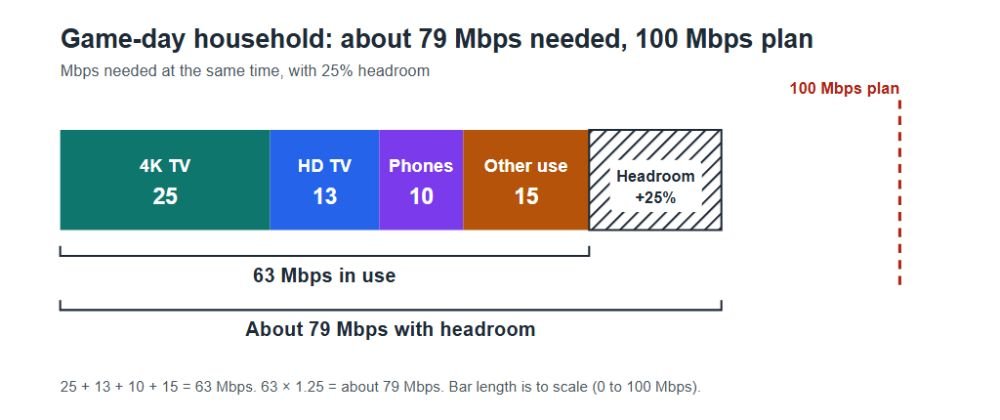
Picture one 4K TV, one HD TV, two phones, and some background use:
- 4K TV: 25 Mbps
- HD TV: 13 Mbps
- Two phones: 10 Mbps
- Other activity: 15 Mbps
That is 63 Mbps. With 25% headroom, you get about 79 Mbps. A 100 Mbps plan fits, with a little to spare.
Example: Watching Two Games at Once (Multiview)
If two TVs show two different games, count them as two separate streams. Two HD games plus two phones and background use come to about 51 Mbps, or 64 Mbps with headroom. If both games are 4K, the total is about 75 Mbps, or 94 Mbps with headroom. That is cutting it close on a 100 Mbps plan.
Multiview features show several games on one screen. I could not confirm how each service handles bandwidth for multiview, so count each game as its own stream to be safe.
Is 100, 500 or 1,000 Mbps Enough for Live Sports?
These are the plan sizes people ask about most. The answer depends on how many screens and devices you have, not on the game itself.
When 100 Mbps Is Enough
For many homes, yes. The game-day example above came to about 79 Mbps. A 100 Mbps plan can handle one or two game streams plus normal household use. It gets tight when you add several 4K streams, heavy gaming, or a work-from-home setup at the same time.
When 500 Mbps Makes Sense
Pick this tier if lots of people and devices are online at the same time, or if you want a lot of room. Streaming alone will not use anywhere near 500 Mbps. The extra capacity helps when many things happen at once.
Is a 1 Gig Plan Worth It for Streaming?
For live sports alone, usually not. A 1 Gig plan makes sense for large households that also game, work from home, and download big files. A faster plan will not fix a weak Wi-Fi signal or a busy neighborhood network either, so check those first.
How Much Data Does Live Sports Streaming Use?
If your internet plan has a data cap, this matters. You can estimate the maximum with simple math. Multiply the speed by the number of seconds, then divide by 8 to convert bits to bytes.
| Stream speed | Most data used in 1 hour |
|---|---|
| 5 Mbps | about 2.25 GB |
| 8 Mbps | about 3.6 GB |
| 13 Mbps | about 5.85 GB |
| 25 Mbps | about 11.25 GB |
These are ceilings, based on my own calculation. Real use is usually lower because streams adjust to your connection. For comparison, one PopSci guide says 4K streaming uses up to about 7 GB per hour.
A three-hour game at 13 Mbps would use at most about 17.5 GB. Check your internet plan for a monthly data limit, then multiply by the number of games you watch. Or skip the math with our streaming data usage calculator, which checks a month of games against your data cap.
Why Your Game Still Buffers on a Fast Plan
A fast plan does not always mean a smooth stream. Your plan speed is what reaches your home. What reaches your TV depends on your network inside the house. Here are the most common causes.
Wi-Fi Coverage and Router Limits
Wi-Fi gets weaker with distance and walls. A TV far from the router may get only a small part of your plan’s speed. An old router can also be a bottleneck when many devices connect at once. Moving the router to a central spot, or using a mesh system in a larger home, often helps.
Peak-Time Congestion on Game Day
Big games bring many people online at once. Your connection to your provider, or your own home network, can slow down at those times. This is why testing at an off-peak hour can look fine, then fail on game night. Test at the time you actually watch.
Wi-Fi vs. Ethernet for Your Main TV
A cable from the router to your TV removes Wi-Fi from the picture. Wired connections are generally steadier than wireless ones. If your main TV buffers, plugging it in with an Ethernet cable is often the quickest fix. Check that your TV or streaming device has an Ethernet port.
Problems on the Streaming Service’s Side
Sometimes the problem is not on your end. A service can have an outage or heavy demand. If other apps work fine and only one service struggles, check the service’s status page or try a different device. Lowering the picture quality for a while can also keep the game going.
How to Test Your Connection Before Game Day
A speed test takes a minute. A good test tells you what you will really get during the game.
- Test at game time. Run the test around the hours you normally watch, not at 10 a.m. The results will be closer to real life.
- Use a trusted tool. Fubo’s help page points viewers to Fast.com, and many TVs and streaming devices have a built-in network test.
- Test near the router first. Connect a laptop by cable if you can. This shows your plan’s real speed.
- Test where you watch. Start the test on your TV, or use another device that’s in the same room. If the result is much lower than at the router, your Wi-Fi is the problem.
- Compare to your total. Look at the number you calculated earlier. If your result is lower, fix your setup first, then think about a faster plan.
- Repeat a few times. One test can be a fluke. Three tests give you a better picture.
Bandwidth Planning for Bars, Restaurants and Venues
A business has different needs than a home. More screens run at once, and customers and staff also use the network. Venues also need the right commercial rights to show games, and home subscriptions generally are not made for that. Check your provider’s terms.
Planning Per Device
EverPass’s help page suggests planning for at least 10 Mbps for each streaming device. Four screens would need at least 40 Mbps, which matches EverPass’s own example. Treat that as a starting point and add headroom, especially for HD or 4K screens.
Accounting for POS, Guest Wi-Fi and Cameras
The same page notes that point-of-sale systems, guest Wi-Fi, and cameras also use bandwidth. During your busiest hours, less is left for the TVs. EverPass advises testing at the times when your business is busiest, which is when the network works hardest. Add up the TVs and those other systems separately, then plan for the total.
Streaming vs. Broadcasting: What About Upload Speed?
Watching a game uses your download speed. Broadcasting a game uses your upload speed. Some home plans have much lower upload speeds than download speeds, so this difference matters if you plan to stream a game yourself.
For example, Frontier’s streaming guide says Twitch recommends at least 3–6 Mbps for gaming live streams. That is a third-party summary, so check Twitch’s own broadcasting guidelines for current settings.
One important point: only broadcast games you have the rights to share. That could be your kid’s league, a school game with permission, or your own gameplay. Restreaming professional or college games without permission is a different matter, and you should not do it.
Frequently Asked Questions
Is 25 Mbps enough for live sports streaming?
For one 4K stream, yes. YouTube TV lists 25 Mbps for 4K. Once other people and devices are online, you will likely need more.
Does live sports need more bandwidth than movies?
Not always per stream, but live video can’t load far ahead. That makes a steady connection more important than a high peak speed.
Is Ethernet better than Wi-Fi for streaming live games?
Generally, yes. A wired connection is usually steadier than Wi-Fi. It is a good fix for a main TV that keeps buffering.
Key Takeaways and Next Steps
So, how much bandwidth does live sports streaming need? Start with the per-stream numbers: about 13 Mbps for HD and 25 Mbps for 4K, which matches YouTube TV’s official 4K requirement. Then add up every stream and device running during the game, and leave 20–30% headroom. For many homes, the total lands well below 500 Mbps. A 100 Mbps plan can cover a typical game-day home, while larger homes with many devices benefit from more capacity.
Remember that a fast plan does not guarantee a smooth stream. Wi-Fi coverage, peak-time congestion, and an outdated router often cause the buffering. A wired connection to your main TV is the simplest fix. Before the next big game, run a speed test at the time you will actually be watching and compare the result to your own total. If it falls short, fix your setup first, then consider upgrading your plan.